Elevating PowerPoint Presentations with Custom and Premium Icons from Canva
In a world where attention is currency, your presentation needs more than just content — it needs visual precision. That's where custom-designed icons come in, and Canva is the perfect tool to create them.
This blog will guide you through the art of designing custom and premium icons in Canva, and how to seamlessly integrate them into your PowerPoint presentations for a polished, professional, and modern visual impact.
🎯 Why Icons Matter More Than Ever
Icons do more than just decorate a slide — they:
- Represent ideas instantly
- Make content easier to digest
- Replace bulky text with visuals
- Keep your audience engaged
- Create consistency in visual language
Using custom-designed icons from Canva allows you to match the tone and style of your message while staying far ahead of generic or outdated PowerPoint graphics.
🛠 Tools You'll Need
- ✅ Canva (Free or Pro) — to browse, customize, and export icons
- ✅ Microsoft PowerPoint — to assemble and deliver your slides
- ✅ A clear color scheme or theme for branding and visual coherence
🎨 Designing Custom Icons in Canva
1. Start a Blank Icon Canvas
In Canva, choose a square canvas (e.g., 500×500 px or 800×800 px for high resolution) to keep icons crisp when scaled in PowerPoint.
2. Search for Relevant Icons
Use keywords like "analytics," "growth," "teamwork," or "secure." You can filter by style (Flat/Outline) and availability (Free/Premium).
Pro Tip: Stick to one icon style throughout for visual consistency.
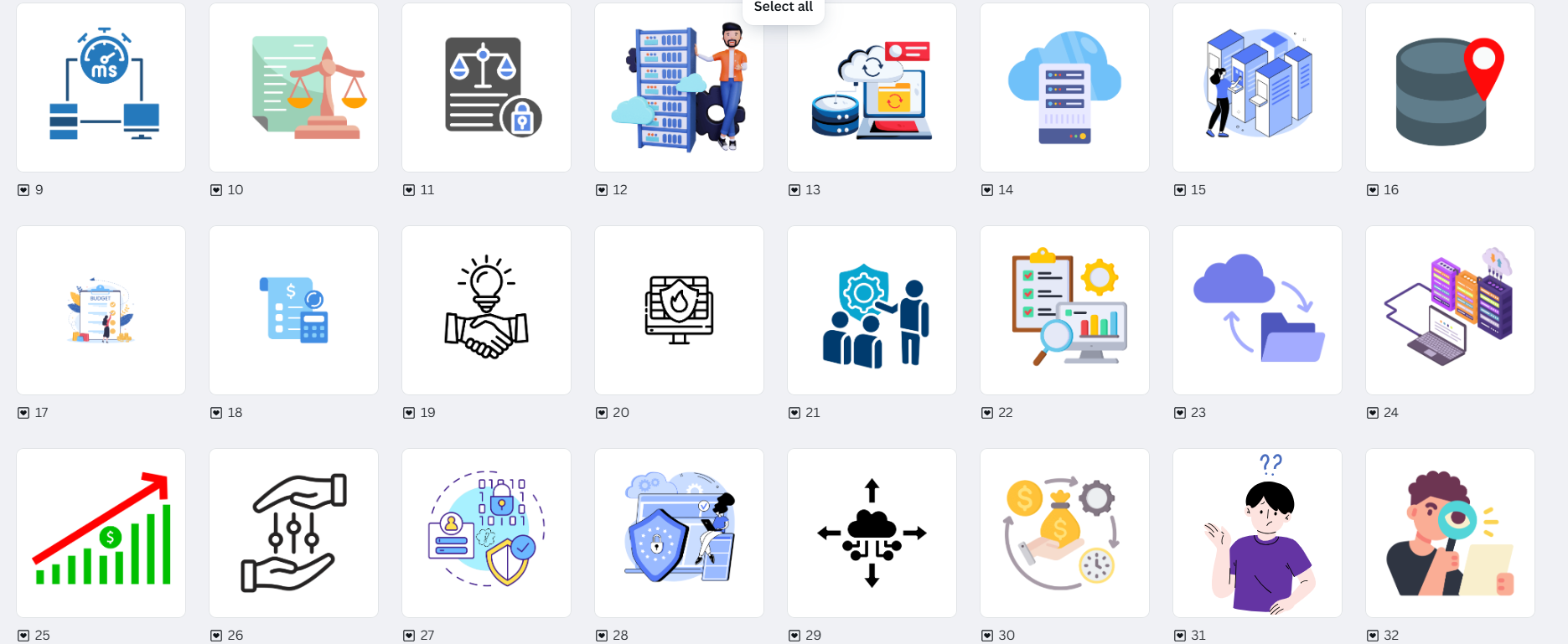
3. Customize the Icons
Click on any icon to change its color to match your brand, add a background shape (like a circle or hexagon), or apply subtle effects like drop shadows for depth.
Want a premium look? Use Canva Pro icons which offer high-detail vector-style designs perfect for corporate, tech, or creative presentations.
4. Export Your Icons
Go to Share → Download, choose PNG format, and select "Transparent background" for maximum flexibility in PowerPoint. You can download icons individually or all at once.
🧩 Using Canva Icons in PowerPoint
Here's how to maximize the impact of your Canva icons:
- In Titles: Pair a relevant icon with your slide heading for context and aesthetic appeal.
- Replace Bullet Points: Use icons to represent each point. E.g., checkmarks for benefits, warning signs for risks.
- Visual Breaks: Place a bold icon in the center of a transition slide to improve pacing.
- Infographics: Mix PowerPoint shapes with your Canva icons to build custom diagrams and flowcharts.
✨ Bonus: Building Your Own Icon Set in Canva
To speed up future projects, design and save a personalized icon pack in Canva with 8–12 icons based on frequent use (e.g., about us, contact, growth, innovation). This becomes your go-to branding asset.
💼 Use Case Example: Business Pitch Presentation
| Slide Title | Suggested Icon (from Canva) |
|---|---|
| Our Mission | Rocket or lightbulb icon |
| The Problem | Alert triangle icon |
| Our Solution | Puzzle piece or shield icon |
| How It Works | Gear or flowchart-style icon |
| Market Insights | Graph or pie chart icon |
| Our Team | People icon |
| Contact Us | Envelope or phone icon |
All icons are created in Canva, exported with transparency, then inserted and animated professionally in PowerPoint.
✅ Best Practices When Using Canva Icons in PowerPoint
- Maintain alignment and spacing across slides
- Don't stretch icons — resize proportionally
- Keep icon sizes uniform across all slides
- Use limited colors (2–3 max) for a premium feel
- Always test visibility: dark icons on light background and vice versa
🧠 Final Thoughts
In the era of design-first communication, icons are the secret weapon to elevate your presentations. With Canva's powerful library, you can design visuals that feel custom, consistent, and clean.
So stop settling for boring slides. Create with Canva. Present with PowerPoint. Impress with every click.
✍️ Designed in Canva. Presented with PowerPoint. Shared with passion.